The Laptop Is the Boss Fight: A Heat-Management Protocol for Kaizo Runs on Mobile Hardware
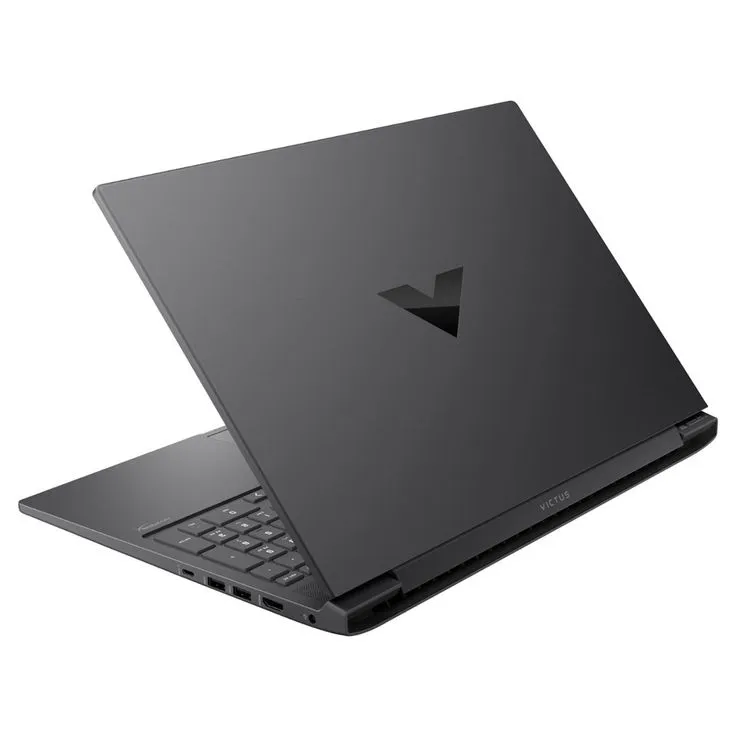
Photo: Laziz940, CC0, via Wikimedia Commons
Kaizo on a laptop sounds like a punchline. The keyboard flexes, the fans hit jet-engine pitch, and somewhere around the third phase of a boss your frame times fall apart and a frame-perfect dodge becomes a coin flip. But mobile CPUs and GPUs in 2026 are genuinely capable. The problem usually is not raw horsepower. It is heat soak and power delivery. Treat those as part of the challenge and a good gaming laptop can hold a no-hit session together.
This is the checklist we run before any long kaizo block: undervolt both processors, cap power where it makes sense, get the chassis off the desk, tune the fan curve, then prove stability with a test that looks like actual boss-fight load instead of a five-minute benchmark.
Thermal Throttle Is a Mechanic, Not an Excuse
When a laptop hits its thermal ceiling, the CPU and GPU start dropping clocks to protect themselves. You feel it as stutter, input latency, and ugly 1% lows. In a normal game that is annoying. In kaizo, a 40-millisecond hitch during a two-frame window is a death. Worse, the throttling is not always obvious. Some laptops quietly stretch clocks instead of dropping frames, so your average FPS looks fine while your frame-time graph looks like a heart monitor.
Before you change anything, install HWiNFO64 and log CPU and GPU temperatures, clock speeds, package power, and throttle flags. Play a hard section for 15 minutes. If you see thermal throttling, power-limit throttling, or clocks falling over time, you have work to do.
Step 1: Pick a Power Profile You Can Actually Hold
Most gaming laptops ship with vendor software that offers silent, balanced, and performance modes. Performance mode usually raises power limits and fan speed. That is where you want to start for kaizo, but do not assume the highest mode is best. On some thin chassis, the top mode just turns into a space heater and throttles harder. Compare frame-time consistency, not peak FPS.
If your laptop exposes CPU PL1 and PL2 limits in software like ThrottleStop, Intel XTU, or AMD's tuning utility, consider lowering PL2 slightly. A CPU that holds a steady 45 watts often produces smoother frame times than one that spikes to 90 watts and then falls on its face. On the GPU side, check the total graphics power rating and whether the laptop uses Dynamic Boost. Capping the GPU a few watts below maximum can lower temperatures enough to keep clocks steady, which is usually the better trade.
Also set Windows to the Best Performance power plan and disable any battery-saver behavior that kicks in mid-session. And if your laptop has a MUX switch or Advanced Optimus, run the discrete GPU directly. It costs heat, but it cuts latency and avoids the integrated GPU stepping on frame pacing.
Step 2: Undervolt the CPU, Carefully
Undervolting is the highest-value tweak on most gaming laptops. Less voltage means less heat at the same clock speed, which means more headroom before throttling. Intel chips can often be tuned with ThrottleStop or XTU, while AMD chips may expose Curve Optimizer in the BIOS or through a utility. Some laptops lock these settings entirely. If yours does, skip ahead and lean harder on cooling and power limits.
Start with a small offset, run a stability test, and increase gradually. Do not chase the biggest number you saw on a forum. Silicon lottery is real, and an unstable undervolt can cause random crashes that look like game bugs. Test with a real workload, not just a benchmark. If the system blue-screens, freezes, or throws WHEA errors, back off.
On many laptops, a modest negative offset on the CPU core and cache is enough to drop several degrees and stop throttling in the middle of a fight. That is the goal. You are not trying to win a contest. You are trying to make it through a 20-minute boss attempt without clocks collapsing.
Step 3: Undervolt the GPU With a Curve, Not a Prayer
GPU undervolting is where laptops often gain the most. Use MSI Afterburner and open the voltage-frequency curve. Pick a target voltage, raise the curve point at that voltage to your desired clock, then flatten the points to the right. The result is a card that holds a stable clock at lower voltage and much lower temperature. Memory overclocking is optional and usually not worth the heat on a laptop. Stability matters more than a few extra megabytes per second.
Test each change with a loop of a demanding scene. If you see artifacts, driver resets, or black screens, reduce the clock or raise the voltage. A stable GPU undervolt can turn a laptop that thermal-throttles after 10 minutes into one that holds its clocks for an entire session.
Step 4: The Cheap Stand and the Fan That Actually Helps
Laptop cooling is mostly about airflow. Sitting flat on a desk, many machines pull hot air from the bottom and choke. A simple stand that raises the rear by a couple of inches can drop temperatures noticeably. A cooling pad with large, slow fans can help more, especially on laptops with bottom intakes. Avoid gimmicky pads with tiny high-RPM fans that just add noise.
Ambient temperature matters too. A 70-degree Fahrenheit room is a lot kinder than an 80-degree room. If you are grinding attempts in a warm apartment, a box fan pointed at the intake side can be surprisingly effective. Keep the vents clear, and never run the laptop on a bed or blanket.
Step 5: Build a Fan Curve That Does Not Sound Like a Leaf Blower
Vendor fan curves often prioritize silence until temperatures spike, then ramp hard. That lag is bad for kaizo. Use the manufacturer software, or a tool like NoteBook FanControl if your model is supported, to bring fans up earlier and keep them steady. A constant medium-high fan speed is easier on your ears and your frame times than a fan that surges every 30 seconds.
Aim for a curve that reaches high speed by the time the CPU hits the mid-70s Celsius. Yes, it will be loud. Headphones exist. A stable 75 degrees with loud fans beats a quiet 90 degrees with stutter.
The Verification Loop: Test Like You Play
Do not trust a single benchmark run. Kaizo load is sustained and spiky. Run a 20-minute loop that combines CPU and GPU stress, such as OCCT or a Cinebench loop alongside a demanding game scene. Then play the actual hard section for 30 minutes while logging. Check for throttle flags, clock fluctuations, and frame-time spikes. If the laptop holds steady clocks and temperatures through that, you are probably good for a session.
Your Pre-Session Checklist
Before a long attempt block, do a five-minute warm-up: confirm performance mode, verify the undervolt is applied, check that the stand is clear, and watch temperatures for the first few minutes. Cap your frame rate if you can. Lower FPS means lower heat, and a steady 60 or 120 beats a fluctuating 144. Keep the laptop plugged in, because battery mode often cuts power limits. And take breaks. A laptop that has been heat-soaked for three hours is not the same machine as one that just booted.
Laptop kaizo is not a joke. It is just a different kind of optimization. Treat heat and power as part of the run, and your mobile rig can absolutely carry you through the boss.