The Death That Only Happened on Stream: Auditing Your Capture Chain Before It Eats a No-Hit

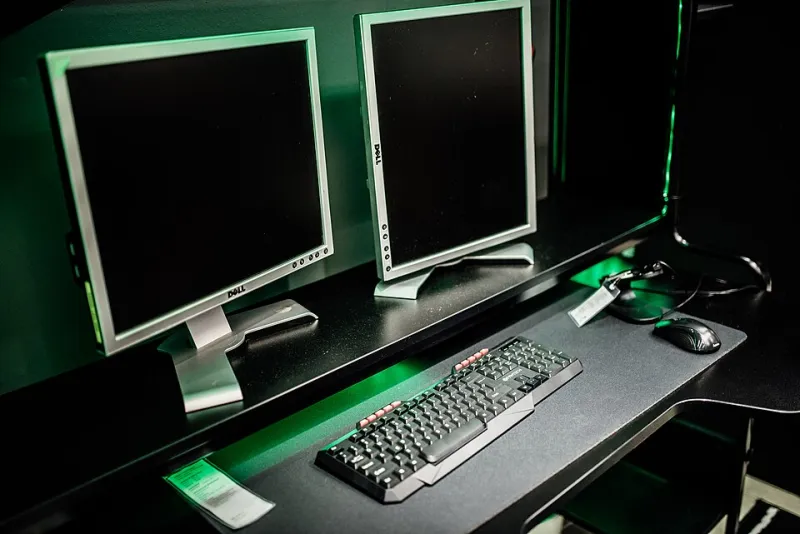
Photo by Photo by TheRegisti on Unsplash on Unsplash
Every kaizo death is supposed to teach you something. The jump was late, the cue was buried, the input dropped. Fine. But there is a special circle of hell for the death that only exists on the VOD — the one where your hands did the thing, the game saw the thing, and the stream replay says you were a frame and a half behind. That is not a skill issue. That is a capture-pipeline issue, and it is poisoning your review footage.
Start with a hard latency budget
At 120 fps, one frame is 8.3 ms. At 60, it is 16.7. If your capture chain adds a full frame, you have effectively demoted your gaming monitor to a different refresh class during the only runs that count. My rule: capture adds no more than half a frame at your target refresh, and never more than 8 ms total — measured, not guessed. Write it down. Tape it to the monitor. A no-hit attempt is a measurement, and your capture card is part of the instrument.
Where the milliseconds actually hide
HDMI passthrough is not magic. It is a handshake, a re-clock, and sometimes a scaler. A card that accepts 4K120 and spits out 1080p60 has a scaler in the path. Some are clean; some quietly add a frame. The tell is usually in the spec sheet: “pass-through” versus “loop-out” versus “capture resolution.” You want a card that passes the signal through untouched and captures on a separate path. If the marketing copy never says “uncompressed passthrough,” assume there is a chip in there doing math you did not ask for.
EDID matters too. If the card lies to your GPU about supported modes, your GPU may renegotiate to a different timing, and you will feel it before you can explain it. HDR handshakes can add delay or black screens. VRR passthrough is often the first casualty. For kaizo, a boring 1440p120 SDR passthrough that works every time beats a spec sheet full of features that only behave on Tuesdays.
Encoder choice is a scheduling decision, not a religion
AV1 is the shiny object in 2026, and on current GPUs it is a legit low-latency option — if your streaming PC can decode it and your platform accepts it. NVENC is the boring workhorse. x264 is the CPU tax collector. For kaizo, pick the encoder that keeps encode time predictable, not the one with the best quality-per-bit at a two-second keyframe interval. Use low-latency presets, CBR, a short keyframe interval, and do not stack “slow” presets on a CPU that is also trying to run the game.
The real test is not a five-minute sanity check. It is twenty minutes at your target bitrate while you play something that actually stresses the machine. If OBS starts dropping frames or the encoder queue backs up, your VOD will look fine and your feel will be off. That is the worst trade in streaming.
OBS settings that quietly add delay
Uncheck “Use buffering” on your capture source. Kill the render delay filter. Do not use async video sources unless you have measured them and accepted the cost. If you are using a capture card as a webcam source, check the buffering box — it is on by default in some setups and it absolutely adds delay. Audio sync offset should fix audio, not video. If you are delaying video to match audio, you have already lost.
Keep the OBS preview off or on a second monitor that is not in your input path. Set process priority to above normal only if you have tested it; otherwise you are trading frame consistency for vibes. The goal is not a prettier preview. The goal is a pipeline that stays out of the way.
The dual-PC handoff is where the tax gets weird
The classic setup: gaming PC to capture card in streaming PC, passthrough to gaming monitor. If you clone the display in Windows, the capture card becomes a display and can force a mode change. If you use passthrough, the card sits between GPU and monitor. Test both. Measure both. Some cards add a frame in passthrough; some add two in clone. The only way to know is to film it.
Also check what happens when the streaming PC sleeps, updates, or reboots. A capture card that drops the passthrough signal on a driver hiccup is not a capture card. It is a random kaizo difficulty modifier.
Measure it like a speedrunner, not a vibes merchant
You do not need a lab. You need a phone with a slow-mo mode and a button with an LED. Put the controller and the monitor in the same frame. Press the button; count the frames from LED to on-screen response. Do it ten times. Then insert the capture card and repeat. The delta is your capture latency, including the card, the encoder, and OBS. If you want to get fancy, use a latency tester like LDAT or a high-speed camera at 240 or 480 fps. Film the monitor, not the OBS preview.
Test with a mod you know cold. A kaizo level with a fixed cue is a calibration tool. If the cue lands late only when the capture chain is active, you have your answer. If it lands late with and without capture, congratulations: the mod is fine and your display is the problem.
Buying guide: clean passthrough or bust
Look for internal PCIe cards with uncompressed passthrough, explicit 4K60 or 1440p120 passthrough, VRR support, and no onboard scaler. External USB cards are fine for console or handheld capture, but check the passthrough spec. Avoid no-name cards that advertise “4K” while capturing 1080p30. The price of a clean card is usually less than the cost of a ruined run.
Used gear is okay if you can test it. Bring a laptop and a camera, or buy from a retailer with a return window. Micro Center and Best Buy returns are your friend. A capture card is not a place to save thirty dollars and lose a weekend.
Pre-stream checklist
- Capture card passthrough confirmed at target resolution and refresh.
- OBS source buffering off; no render delay filters.
- Encoder preset tested at target bitrate for twenty minutes.
- Audio sync offset set; video untouched.
- Dual-PC clone versus passthrough measured.
- Slow-mo baseline recorded this week.
Then go die for real reasons. The mod deserves the blame. Your capture card does not.